On the Microsoft TechNet site, there is a couple of articles on how to set up a MOSS environment. Following those steps will give you a good environment. However, I have found that there is not that much control over the naming of the databases. This is fine, but then you have to come back and do some extra steps to rename them correctly. These are the steps that I follow to avoid having to come back and do all of that work.
I have already configure a VPC image with Windows Server 2003, SQL Server, Visual Studio 2008, etc. I have also set it up as a Domain Controller (DC) and create a couple of accounts (SharepointService, SQLService, etc).
There are instructions on TechNet on how to setup the SQL Server before setting the MOSS environment: Prepare the Database servers. Follow those steps.
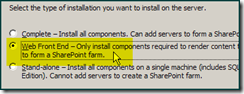
Now start the MOSS setup, select the Advance installation

I choose to install the Web Front End, since it gives me the most flexibility
Once this step has finished running, this is a good point to rename the Content DB's.

Do not run the configuration wizard yet.

Uncheck and close this window. Now use the psConfig utility, which it is available on this location:
C:\Program Files\Common Files\Microsoft Shared\web server extensions\12\BIN
| parameter | value |
| Server | MossOnlyAW |
| Domain | MOSSBSG |
| User | SharepointService |
| Password | ********* |
| Config DB name | STS_Config |
| Admin Content DB name | STS_AdminContent |
this is the parameters to configure the initial Databases
psconfig.exe
-cmd configdb
-create -server MossOnlyAW
-database STS_Config
-user MOSSBSG\SharepointService
-password <myPassword>
-admincontentdatabase STS_AdminContent
Run this from the command prompt window and you will get the following results:
SharePoint Products and Technologies Configuration Wizard version 12.0.4518.101
Copyright (C) Microsoft Corporation 2005. All rights reserved.
Performing configuration task 1 of 3
Initializing SharePoint Products and Technologies configuration...
Successfully initialized the SharePoint Products and Technologies configuration
Performing configuration task 2 of 3
Creating the configuration database...
Successfully created the configuration database.
Performing configuration task 3 of 3
Finalizing the SharePoint Products and Technologies configuration...
Successfully completed the SharePoint Products and Technologies configuration.
Total number of configuration settings run: 3
Total number of successful configuration settings: 3
Total number of unsuccessful configuration settings: 0
Successfully stopped the configuration of SharePoint Products and Technologies.
Configuration of the SharePoint Products and Technologies has succeeded.
C:\Program Files\Common Files\Microsoft Shared\web server extensions\12\BIN>
now if you check your SQL server, you will see the 2 databases that were created, it also went and added that SharepointService account to the valid logins in your SQL Server.
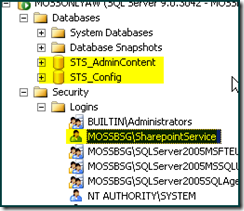
Now go ahead and run the SharePoint Configuration Wizard. It will pick the databases that you have created, do not disconnect from this server farm:

I like to specify a port number that is easy to remember
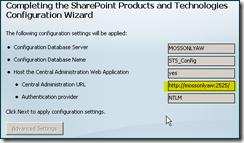
Gotchas: You might run into an error if the service account does not have enough rights:
Server Error in '/' Application.
--------------------------------------------------------------------------------
The current identity (MOSSBSG\SharepointService) does not have write access to 'c:\WINDOWS\Microsoft.NET\Framework\v2.0.50727\Temporary ASP.NET Files'.
so open up this folder and add the SharepointService account to the list of authorized users. Give this account access to modify.

Close the browser and re-open the Central Administration page. You can now start to configure your MOSS sites.


